Installing Terminal & WSL (Windows Subsystem for Linux)
Series: Foundations of Digital Agency — Part 3 ← Part 2: Editors, IDEs & Installing VS Code → Part 4: Using VS Code with WSL
If you're a web developer on Windows, Windows Subsystem for Linux (WSL) is essential. This tutorial walks you through understanding what WSL is, why you should use it, and how to install and configure it for development. > **Note: This guide is for Windows only.** If you're on macOS, you already have a Unix-based terminal, so you can skip this tutorial and move on to the next one in the series. ## Do I really need WSL? Short answer: **Yes, if you're doing web development on Windows.** Most web development tools, packages, and tutorials assume a Unix-based environment (Linux or macOS). While you *can* develop on Windows using PowerShell or cmd.exe, you'll constantly run into compatibility issues with package managers, build tools, and open-source projects that assume a Unix shell. WSL lets you run Linux directly on Windows without the overhead of a virtual machine. ## What exactly is WSL? Windows Subsystem for Linux (WSL) is a compatibility layer that allows you to run a genuine Linux environment directly on Windows. It runs a real Linux kernel in a lightweight virtual machine while remaining tightly integrated with Windows—you get the speed and compatibility of Linux with the convenience of Windows. 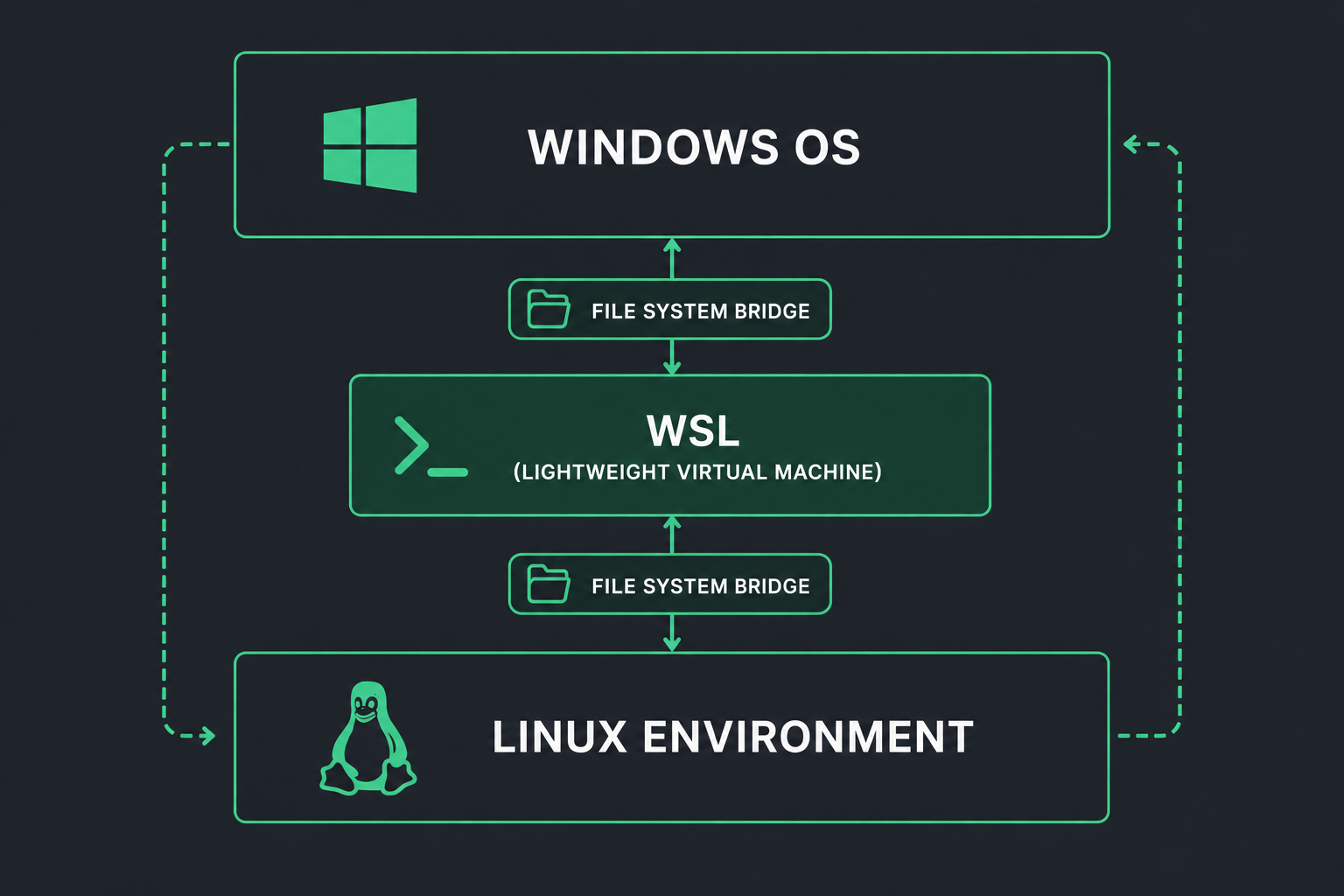 ## What's a Linux distribution (distro)? A Linux distribution is a packaged version of the Linux kernel bundled with specific tools, package managers, and system utilities. Common distributions include Ubuntu, Debian, Fedora, and Alpine. For development, **Ubuntu** is the most beginner-friendly and widely supported choice. ## Why WSL instead of dual-booting Linux? Dual-booting lets you choose your OS at startup, but you can't use Windows and Linux simultaneously without rebooting. WSL gives you both environments running at the same time with seamless file access between them. You get the best of both worlds. ## Why WSL instead of a virtual machine (VM)? VMs use more system resources (CPU, RAM, storage) than WSL. WSL is lightweight, boots faster, and integrates better with Windows. If you're resource-constrained or want a quick development environment, WSL is superior. ## Do I lose anything by using WSL? WSL gives you a Linux shell and command-line tools, but it doesn't run a full graphical Linux desktop by default. You'll still use Windows for your GUI applications (VS Code, browsers, etc.) and access Linux through the terminal. This is exactly what most developers want. --- ## 💻 Install Windows Terminal (Recommended) Windows Terminal is Microsoft's modern terminal application. Instead of using the default Windows PowerShell or cmd.exe, Windows Terminal provides a cleaner, more customizable experience with multiple tabs, themes, and seamless WSL integration. **What's a Terminal?** As explained in [FAQ: Operating Systems, Terminals & Shells](https://pawper.dev/?v=entry&cat=logs&entry=latest&modal=log&id=intro-to-operating-systems-terminals-shells-faq-4agm), a terminal is the application that runs a shell (the command-line interpreter). Windows Terminal is the container app, while Bash/Zsh/PowerShell are the shells inside it. See that FAQ for deeper explanation. **Install from Microsoft Store:** 1. Open the Microsoft Store (search "Microsoft Store" in the Windows Start menu) 2. Search for "Windows Terminal" 3. Click "Install" That's it! Once installed, Windows Terminal is ready to use. You'll use it to run the WSL installation command in the next section. After WSL is installed, Windows Terminal will automatically recognize Ubuntu as an available shell profile. --- ## 💻 Install WSL These instructions are for **Windows 10 (Build 19041+) or Windows 11**. ### Step 1: Check Your Windows Version Press `Win + R`, type `winver`, and press Enter. You need: - **Windows 10**: Version 21H2 or later (Build 19041 or higher) - **Windows 11**: Any version If you need to update, go to Settings → System → About → Windows Update. ### Step 2: Enable WSL Open **Windows Terminal as Administrator**: 1. Right-click the Windows Terminal icon (in Start menu or taskbar) 2. Select "Run as Administrator" 3. You may see a prompt asking "Do you want to allow this app to make changes?" — click "Yes" Once Windows Terminal opens with admin privileges, you'll see a command prompt. Regardless of which shell it displays (PowerShell, cmd.exe, or another), the `wsl --install` command works in any of them. Simply paste or type: ```pwsh wsl --install ``` This single command will: 1. Enable WSL and the Virtual Machine Platform feature 2. Download and install Ubuntu (the default distro) 3. Automatically configure the latest version for you > **Note**: If you see an error about virtualization, you may need to enable it in your BIOS. Restart your computer, enter BIOS (usually by pressing F2, F10, DEL, or ESC during startup — varies by manufacturer), and look for "Virtualization" or "Intel VT-x" / "AMD-V" and enable it. ### Step 3: Ubuntu setup You'll see a setup prompt: ``` Installing, this may take a few minutes... Please create a default UNIX user account. The username does not need to match your Windows user name. For more information visit: https://aka.ms/wsluserstore Enter new UNIX username: [type your username] New password: [type a password] Retype new password: [confirm password] ``` Choose a simple username (e.g., `dev` or your first name). **Remember this password** — you'll need it for administrative tasks in WSL. https://pawper.dev/?v=entry&cat=logs&entry=latest&modal=log&id=guide-password-management-cybersecurity-beginners ### Step 4: Restart Your Computer WSL requires a system restart for Ubuntu to show up in your terminal applications. Do this now. ### Step 5: Verify Installation Now that WSL and Ubuntu are installed, you can use Windows Terminal to access your Linux environment. Open Windows Terminal and you'll see a dropdown arrow in the top toolbar — click it and select "Ubuntu" to launch your WSL bash shell. 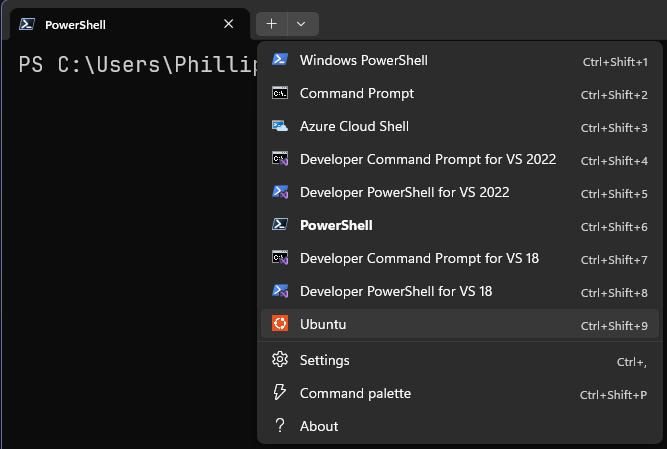 Verify everything works: ```bash wsl.exe --version ``` > Note: You can also run this command in PowerShell, just remove `.exe` You should see output showing WSL version 2.x. ``` WSL version: 2.7.3.0d Kernel version: 6.6.114.1-1 WSLg version: 1.0.73 MSRDC version: 1.2.6676 Direct3D version: 1.611.1-81528511 DXCore version: 10.0.26100.1-240331-1435.ge-release Windows version: 10.0.26200.8524 ``` --- ## 💻 Install supoprt for Linux Graphical User Interfaces (GUIs) WSL enables Linux GUI applications to feel native and natural to use on Windows. - Launch Linux apps from the Windows Start menu - Pin Linux apps to the Windows task bar - Use alt-tab to switch between Linux and Windows apps - Cut + Paste across Windows and Linux apps > This support relies on Windows desktop, so if you are looking at desktop-focused tools or apps in the future, note that they may not be supported. ### Identify your GPU Manufacturer 1. Press Win + R on your keyboard. 1. Type devmgmt.msc and press Enter to open the Device Manager. 1. Click the arrow next to Display adapters. You will see your GPU listed there (e.g., "NVIDIA GeForce RTX 3060," "AMD Radeon Graphics," or "Intel UHD Graphics"). > You may see multiple GPUs listed. Desktop PC builds often have an Integrated GPU (iGPU) and a Dedicated GPU (dGPU). You will need to install both. ### Download the Correct Driver(s) :::tabs ::tab[Intel GPU] https://downloadcenter.intel.com/ ::tab[AMD GPU] https://www.amd.com/support/download/drivers.html ::tab[NVIDIA GPU] https://www.nvidia.com/drivers ::: ### Restart WSL In PowerShell: ```pwsh wsl --shutdown ``` ### Update the packages in your distribution In Ubuntu: ```bash sudo apt update ``` ### X11 GUI Window System X11 draws GUIs (windows) to the screen. It also comes bundled with native-Linux applications such as such as a clock, calculator, and clipboard for copy & paste. ```bash sudo apt install x11-apps -y ``` ### GUI File Manager: Install Nautilus Nautilus is a Linux-native file manager applicaiton, so it's going to perform significantly fast than if you open Linux files in Windows Explorer. ```bash sudo apt install nautilus -y ``` Launch it from your Ubunut terminal: ```bash nautilus & ``` 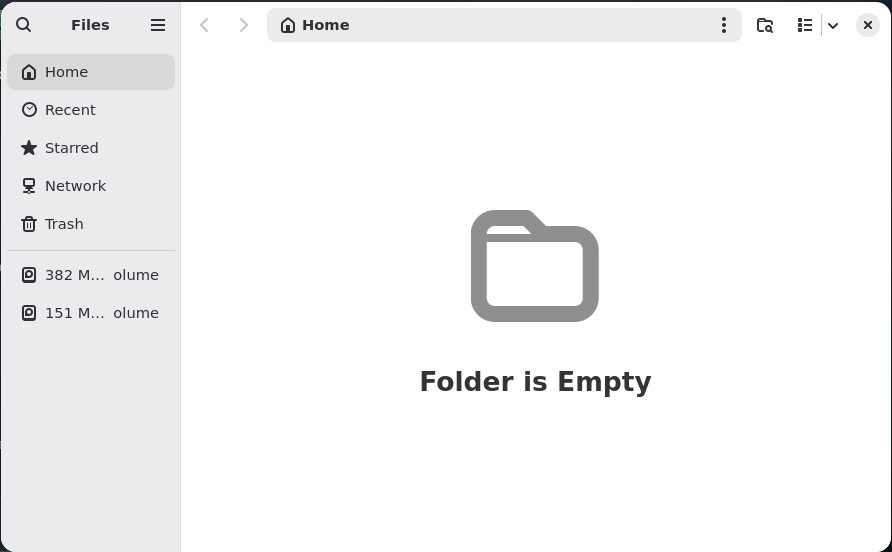 ### GUI Multimedia Player: Install VLC VLC is a free and open source multimedia player. Like Nautilus, it will perform better with multimedia files in Linux than opening them in Windows applications. ```bash sudo apt install vlc -y ``` Launch it from your Ubunut terminal: ```bash vlc & ```  ### GUI Web Browser There are many choices you can pick from. :::tabs ::tab[Firefox] ```bash sudo apt install firefox -y ``` Launch it from your Ubuntu terminal: ```bash firefox & ``` 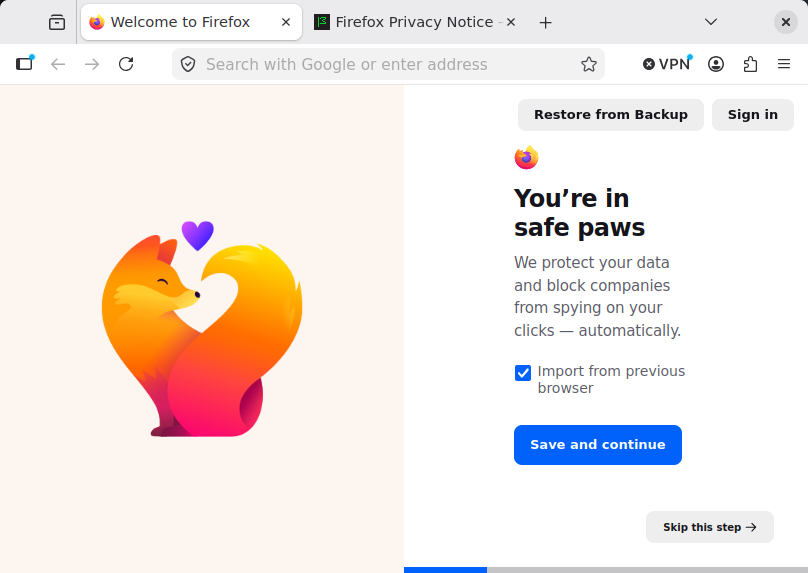 ::tab[Brave] ```bash sudo curl -fsS https://dl.brave.com/install.sh | sh ``` Launch it from your Ubuntu terminal: ```bash brave-browser & ``` > In Linux environments, applications like Brave use a "keyring" service to securely encrypt and store credentials. When you run Brave for the first time in WSL, it prompts you to create one: > 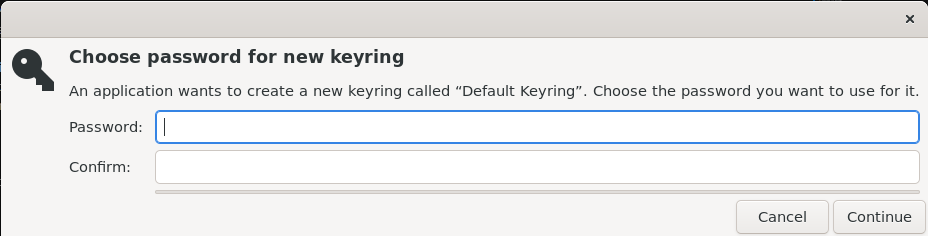 > If you enter a password, you will be prompted to enter it every time Brave opens. If you leave it blank (click Cancel), it will prevent the prompt from appearing on every launch. To launch Brave with a flag to ignore the keyring entirely, enter: > ```bash > brave-browser --password-store=basic > ``` 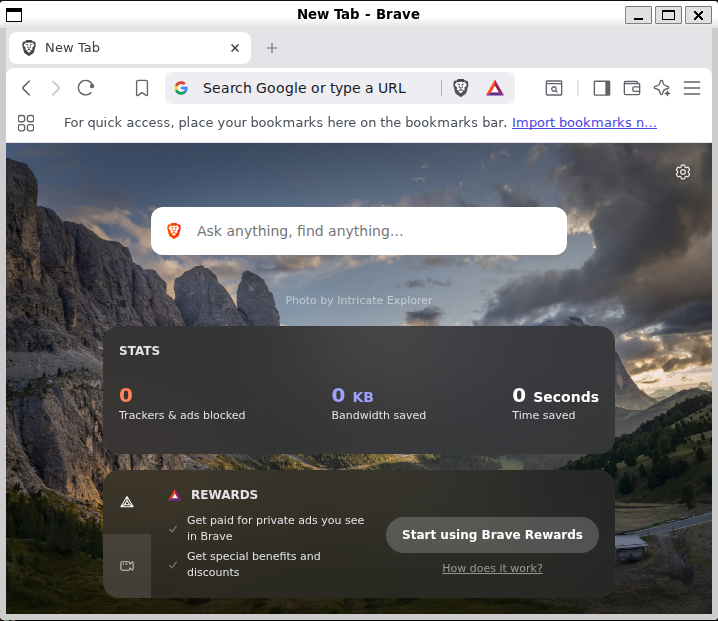 ::tab[Vivaldi] 1. Change directories into the temp folder: ```bash cd /tmp ``` 2. Download the package ```bash wget https://downloads.vivaldi.com/stable/vivaldi-stable_amd64.deb ``` 3. Install the package and fix dependencies ```bash sudo apt install -f ./vivaldi-stable_amd64.deb -y ``` 4. Remove the installer to keep your /tmp folder clean: ```bash rm vivaldi-stable_amd64.deb ``` Launch it from your Ubuntu terminal: ```bash vivaldi & ``` > In Linux environments, applications like Vivaldi use a "keyring" service to securely encrypt and store credentials. When you run Vivaldi for the first time in WSL, it prompts you to create one: >  > If you enter a password, you will be prompted to enter it every time Vivaldi opens. If you leave it blank (click Cancel), it will prevent the prompt from appearing on every launch. To launch Vivaldi with a flag to ignore the keyring entirely, enter: > ```bash > vivaldi --password-store=basic > ``` 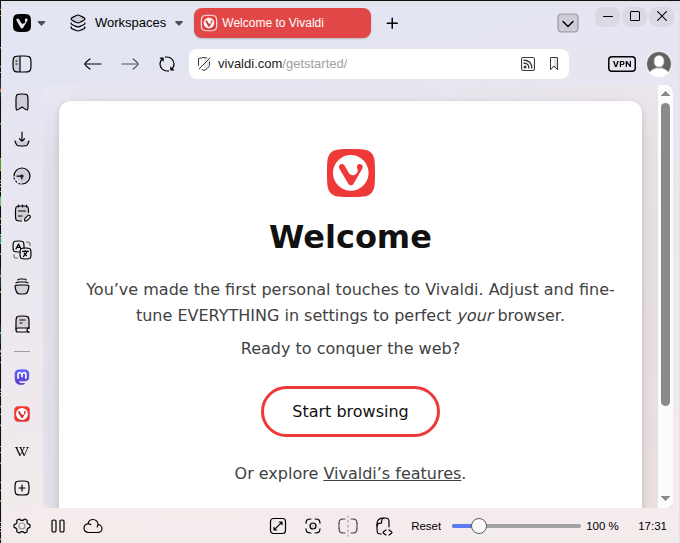 ::tab[Microsoft Edge] 1. Import the GPG key ```bash curl https://packages.microsoft.com/keys/microsoft.asc | gpg --dearmor > microsoft.gpg sudo install -o root -g root -m 644 microsoft.gpg /usr/share/keyrings/ ``` 2. Add the repository ```bash echo "deb [arch=amd64 signed-by=/usr/share/keyrings/microsoft.gpg] https://packages.microsoft.com/repos/edge stable main" | sudo tee /etc/apt/sources.list.d/microsoft-edge.list ``` 3. Update and install ```bash sudo apt update sudo apt install microsoft-edge-stable -y ``` Launch it from your Ubuntu terminal: ```bash microsoft-edge & ``` > In Linux environments, applications like Edge use a "keyring" service to securely encrypt and store credentials. When you run Edge for the first time in WSL, it prompts you to create one: >  > If you enter a password, you will be prompted to enter it every time Edge opens. If you leave it blank (click Cancel), it will prevent the prompt from appearing on every launch. To launch Edge with a flag to ignore the keyring entirely, enter: > ```bash > microsoft-edge --password-store=basic > ``` 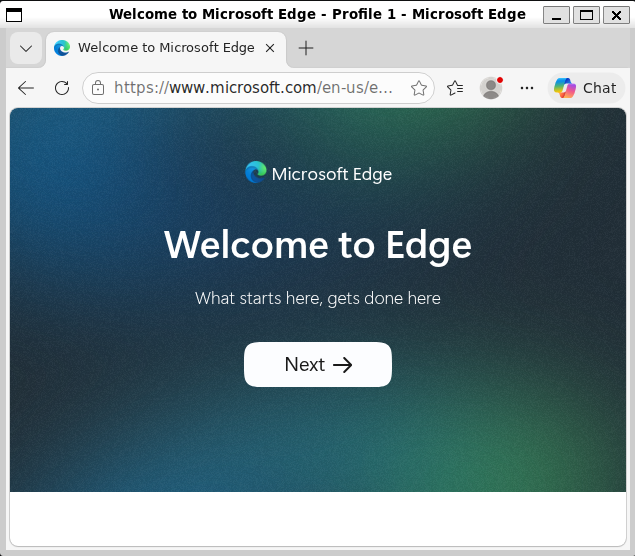 ::tab[Google Chrome] 1. Change directories into the temp folder: ```bash cd /tmp ``` 2. Download the package ```bash wget https://dl.google.com/linux/direct/google-chrome-stable_current_amd64.deb ``` 3. Install the package and fix dependencies ```bash sudo apt install -f ./google-chrome-stable_current_amd64.deb -y ``` 4. Remove the installer to keep your /tmp folder clean: ```bash rm google-chrome-stable_current_amd64.deb ``` Launch it from your Ubuntu terminal: ```bash google-chrome & ``` > In Linux environments, applications like Chrome use a "keyring" service to securely encrypt and store credentials. When you run Chrome for the first time in WSL, it prompts you to create one: >  > If you enter a password, you will be prompted to enter it every time Chrome opens. If you leave it blank (click Cancel), it will prevent the prompt from appearing on every launch. To launch Chrome with a flag to ignore the keyring entirely, enter: > ```bash > google-chrome --password-store=basic > ``` 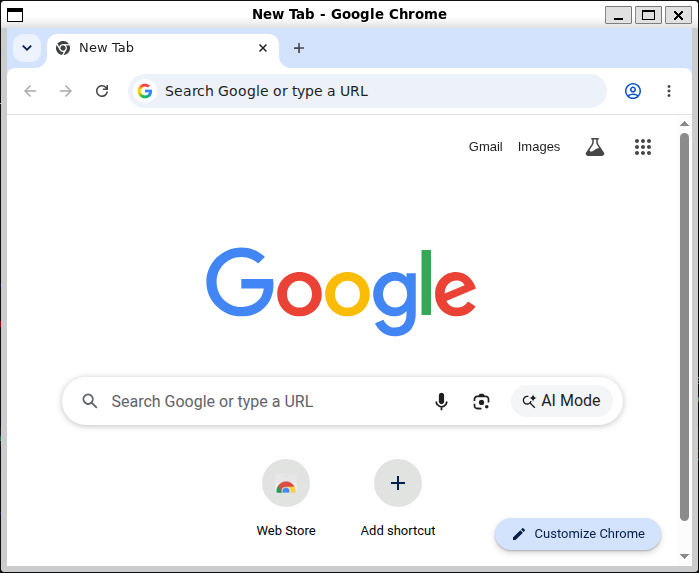 ::: ## Don't work across Windows and Linux filsystems Do not work across the filesystems unless you have a specific reason for doing so, as there is a performance impact. For this series, all work is done on the WSL side of the fence -- stick to that side. When you see `/mnt/` in the file path of a WSL command line, it means that you are working from a mounted drive. So the Windows file system `C:\` drive (`C:\Users\<user name>\Project`) will look like this when mounted in a WSL command line: `/mnt/c/Users/<user name>/Project$`. Keep your development projects in **WSL's home directory** (`~/projects/` or similar), not in Windows. This avoids file permission issues and improves performance. Navigate to WSL's home directory using this command: ```bash cd ~ ``` > We will cover how to navigate the Linux filesystem in the command line in the sixth entry of the series: > http://pawper.dev/l/the-command-line 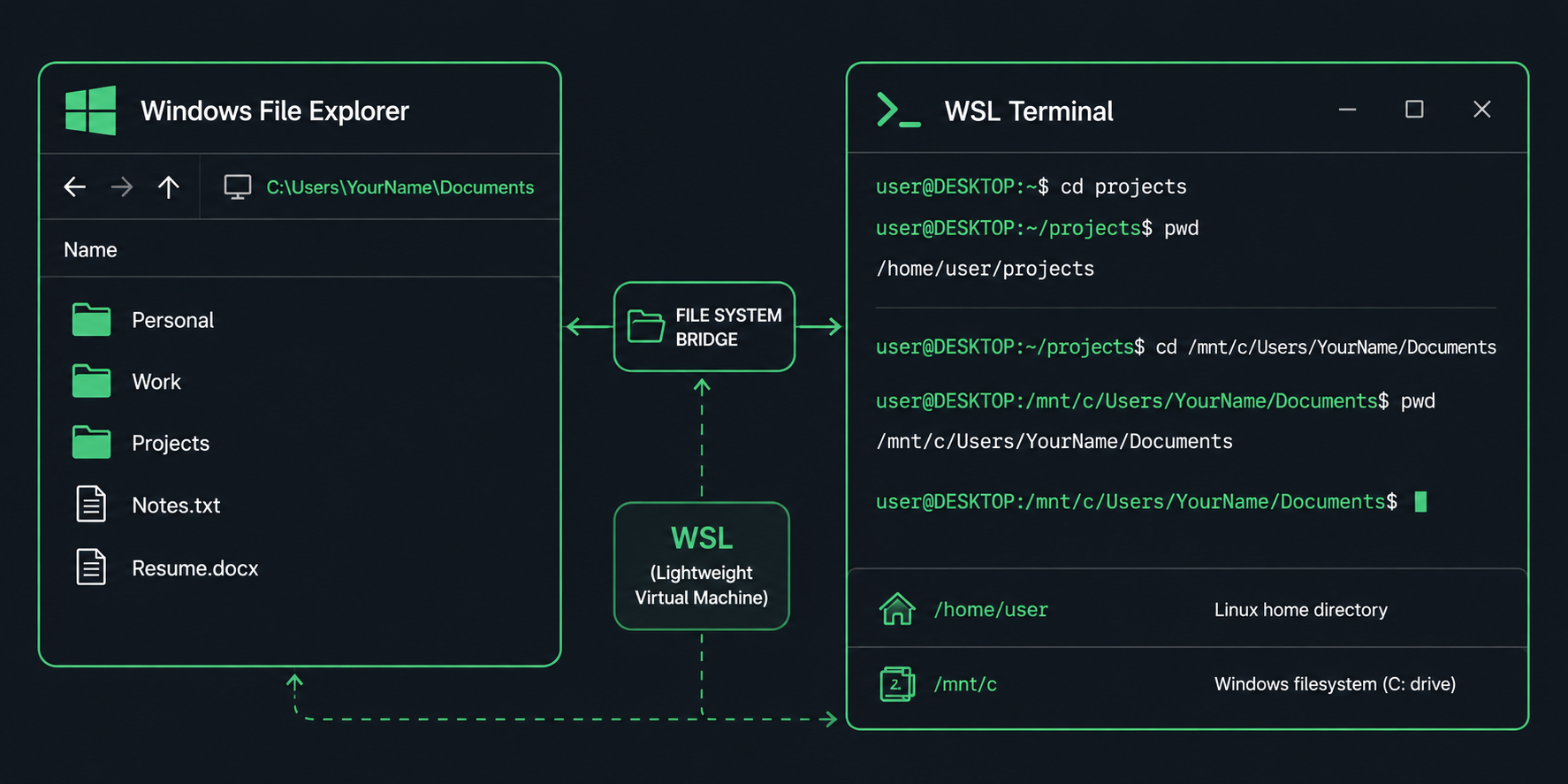 ### If you need to access Windows files Your Windows `C:` drive is mounted at `/mnt/c/` in WSL: ```bash cd /mnt/c/Users/YourUsername/Documents ``` ### If you need to open the current location in Windows File Explorer ```bash explorer.exe . ``` --- ## Troubleshooting ### WSL Doesn't Start / "Command Not Found" Make sure you ran `wsl --install` in **PowerShell as Administrator**, not cmd.exe or a regular PowerShell window. ### "Virtualization is not enabled" You need to enable virtualization in your BIOS. Restart your computer, enter BIOS (varies by manufacturer), and look for "Virtualization" or "VT-x" / "AMD-V". ### WSL Is Slow This might mean you're accessing files across the Windows/WSL boundary. Keep your projects in WSL's home directory, not `/mnt/c/`. ### Forgot Your WSL Password In PowerShell, reset it with: ```powershell wsl --user root passwd username ``` Then exit and log back in as your regular user. ### Keeping WSL updated In PowerShell: ```pwsh wsl --update ``` ### Need to shut down WSL In PowerShell, terminate any running sessions of WSL: ```pwsh wsl --shutdown ``` ### Need to mount another harddrive In PowerShell: ```pwsh wsl --mount <DiskPath> ``` --- > **Sources / additional material:** > > https://docs.microsoft.com/en-us/windows/wsl/install > https://docs.microsoft.com/en-us/windows/wsl/about > https://docs.microsoft.com/en-us/windows/wsl/setup/environment > https://docs.microsoft.com/en-us/windows/wsl/troubleshoot/common-issues > https://docs.microsoft.com/en-us/windows/wsl/setup/windows-terminal > https://learn.microsoft.com/en-us/windows/wsl/filesystems _This article was generated with AI for the purpose of providing practical information. I have reviewed it for accuracy and edited it appropriately._